
PC gaming can be frustrating when your favorite game keeps lagging, freezes during important moments, or runs at a low frame rate. Even a computer that works well for everyday tasks may struggle with modern games. The good news is that you can often improve gaming performance by adjusting a few settings, updating drivers, and checking whether your PC meets a game’s system requirements.
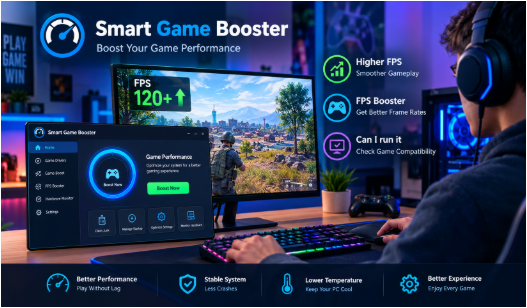
Tools such as Smart Game Booster can help gamers manage performance-related settings and make it easier to prepare a computer for gaming. However, the best results usually come from combining suitable software with good PC maintenance and realistic graphics settings.
This guide explains practical ways to improve FPS, reduce stuttering, and check game compatibility before installing a demanding title.
1. Check Your PC’s Gaming Compatibility First
Before changing your settings, find out whether your computer can run the game you want to play. Every game has its own minimum and recommended system requirements. These usually include the operating system, processor, RAM, graphics card, and available storage space.
Minimum requirements generally indicate the basic hardware needed to run a game, while recommended requirements provide a better starting point for a smoother experience.
If you are unsure about your computer’s compatibility, use the Can I run it tool to check your system against a game’s requirements. This can help you identify potential hardware limitations before spending money on a new game or upgrading your PC.
Pay special attention to your graphics card and available RAM. A computer may meet the processor requirement but still struggle because its GPU is too weak or its memory is limited.
Checking compatibility first also helps you set realistic expectations. Software can improve system management, but it cannot turn an entry-level computer into a high-end gaming machine.
2. Update Your Graphics Drivers
Graphics drivers help Windows communicate with your graphics card. Outdated, corrupted, or incompatible drivers can sometimes cause poor performance, visual problems, crashes, and other gaming issues.
To check for updates, visit the official website or software application provided by your graphics card manufacturer. NVIDIA, AMD, and Intel offer driver updates for supported hardware.
Before installing a new driver, make sure it supports your graphics card and operating system. If your games started crashing after a recent update, check whether the manufacturer provides a suitable fix or a stable previous version.
You should also keep Windows updated, particularly when updates include gaming, security, or hardware compatibility improvements.
Driver updates do not guarantee higher FPS in every game. Their impact depends on your hardware, the game, and the changes included in each release. Still, keeping drivers current is a useful part of maintaining a gaming PC.
3. Use an FPS Booster to Optimize Gaming Performance
Frames per second, commonly called FPS, measures how many frames your computer displays each second. Higher FPS can make movement feel smoother, especially in competitive shooters, racing games, and other fast-paced titles.
If your PC struggles while running a game, an FPS Booster may help you identify performance-related settings and reduce unnecessary background activity. Smart Game Booster is a Windows gaming utility designed to help users manage gaming performance and related system settings.
Instead of manually searching through several Windows menus, you can explore the available optimization features in one place. Depending on the features supported by your version, these may help you manage system resources and prepare your PC before launching a game.
However, it is important to understand what optimization software can and cannot do. Closing unnecessary background applications may free up resources, but it will not solve every performance problem. If your graphics card is already working at full capacity, reducing demanding graphics settings may provide a more noticeable improvement.
For the best results, test your game before and after making changes. Use the same location or benchmark where possible, and compare average FPS as well as sudden drops. This will help you identify which adjustments actually make a difference.
4. Adjust Graphics Settings for Better FPS
High graphics settings can make games look impressive, but they also place greater demands on your processor and graphics card. If you experience low FPS, reducing a few demanding settings can improve performance without making the game look dramatically worse.
Start with these adjustments:
- Resolution: Lowering the resolution reduces the number of pixels your graphics card must render.
- Shadows: High-quality shadows can consume considerable GPU resources. Try medium or low settings.
- Anti-aliasing: Reducing anti-aliasing can improve performance, although edges may look less smooth.
- Ray tracing: If available, turning it off can significantly reduce GPU workload in demanding games.
- Textures: Lower texture quality if your graphics card has limited video memory.
- View distance: Reducing the distance at which detailed objects appear may help in some games.
Change one or two settings at a time instead of lowering everything immediately. This approach makes it easier to find a balance between image quality and performance.
If your game supports technologies such as NVIDIA DLSS, AMD FSR, or Intel XeSS, check whether your hardware and game support them. These technologies can improve performance in supported situations, although the results vary.
5. Close Unnecessary Background Applications
Applications running in the background can use RAM, CPU time, disk activity, and network bandwidth. A browser with many open tabs, large downloads, video-editing software, or several launchers may affect gameplay on a system with limited resources.
Before launching a demanding game, close programs you do not need. You can also open Windows Task Manager to see which applications are consuming the most resources.
Be careful when ending processes. Some background services are important for Windows, security software, audio, or hardware operation. Closing unfamiliar system processes may cause problems.
Smart Game Booster may offer tools to help manage selected background activities, depending on the version you use. Review its available options before applying changes, and avoid disabling essential services simply to gain a small performance improvement.
6. Choose the Right Power Settings
Windows power settings can affect how your computer balances energy use and performance. On some systems, a power-saving mode may limit performance when gaming.
If you use a desktop PC, check Windows power settings and select a suitable performance mode when needed. Laptop users should also check whether their device is plugged into its charger and whether the manufacturer’s control software offers a gaming or performance profile.
Keep in mind that higher-performance modes may increase power consumption, fan noise, and heat. They may also have a limited effect on systems that already operate at full performance.
For laptops, proper cooling is particularly important. Make sure the air vents are not blocked, and use the device on a hard, flat surface. Avoid placing it on blankets or pillows that restrict airflow.
7. Reduce Overheating and Performance Throttling
A computer may deliver good FPS at the beginning of a gaming session but become slower after playing for several minutes. One possible reason is overheating.
When a processor or graphics card becomes too hot, it may reduce its operating speed to protect itself. This behavior is known as thermal throttling.
You can check temperatures using a reputable hardware-monitoring utility. If temperatures remain unusually high, inspect the cooling fans, clean accessible dust carefully, and make sure the computer has enough airflow.
Desktop users may need to check their case ventilation, while laptop users should ensure that the cooling system is unobstructed. Persistent overheating may require professional cleaning or maintenance.
Do not assume that every FPS drop is caused by heat. High CPU or GPU usage, insufficient memory, game bugs, and driver problems can also affect performance. Monitoring system behavior while playing can help you narrow down the cause.
8. Keep Enough Storage Space Available
Modern games often require substantial storage space for installation, updates, and additional content. A drive that is nearly full may also make routine system maintenance and updates more difficult.
Keep enough free space for Windows, game updates, and temporary files. Uninstall games you no longer use and remove unnecessary downloads when appropriate.
Installing games on an SSD can reduce loading times compared with a traditional hard drive in many situations. However, an SSD does not automatically increase FPS because frame rates depend more directly on the processor, graphics card, memory, and game engine.
If a game stutters while loading new areas, storage performance may be one factor worth investigating. Check the game’s recommended hardware and storage requirements before upgrading.
9. Test Your Results After Optimization
Once you have updated drivers, adjusted graphics settings, and closed unnecessary applications, test your games again. Use the same graphics settings and a similar gameplay location so that the comparison is fair.
Look beyond the average FPS. Sudden frame-time spikes can cause visible stuttering even when the average frame rate looks acceptable. You should also pay attention to crashes, loading times, temperature, and overall stability.
If performance gets worse after an optimization, undo the most recent change and test again. Avoid applying multiple unfamiliar tweaks at once, as this makes troubleshooting more difficult.
Smart Game Booster can be part of your optimization routine, but it should complement basic maintenance rather than replace it. Keep your software updated, download tools from trusted sources, and review any changes before applying them.
Final Thoughts
Improving PC gaming performance does not always require expensive hardware upgrades. Checking game compatibility, updating graphics drivers, adjusting demanding graphics settings, closing unnecessary applications, and managing temperatures can all help create a smoother gaming experience.
Start by identifying the actual problem. If your PC does not meet a game’s requirements, consider realistic settings or a hardware upgrade. If the hardware is suitable but performance remains inconsistent, investigate background activity, overheating, drivers, and game-specific settings.
Smart Game Booster provides another option for gamers who want to explore performance optimization tools in one place. Combined with sensible settings and regular maintenance, it can help you build a more organized approach to PC gaming and make better use of the hardware you already own.