

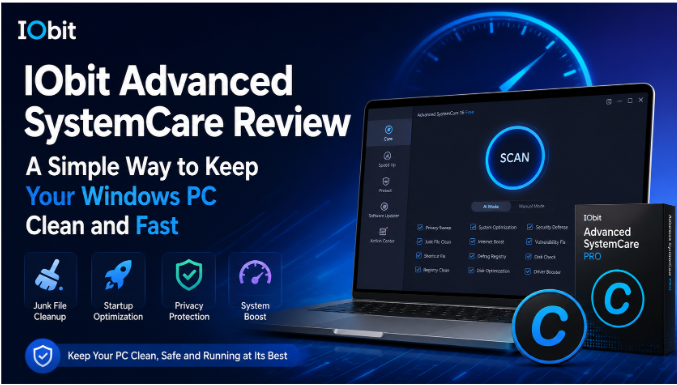
Computers are an important part of our daily lives. We use them for work, study, entertainment, online shopping, and many other tasks. However, after using a Windows PC for a long time, it may not perform as smoothly as it did when it was new. Unwanted files can build up, programs may start automatically, and other small issues can gradually affect system performance.
This is where a reliable PC cleaner can be useful. Instead of searching through different Windows settings and cleaning every area manually, users can use a dedicated optimization tool to manage common maintenance tasks in one place.
One popular name in this area is IObit. The company offers several utilities designed to help Windows users manage, clean, and optimize their computers. Among its well-known products is Advanced SystemCare, a tool created to simplify PC maintenance for both beginners and experienced users.
In this review, we will look at what Advanced SystemCare offers, how it can help users maintain their computers, and why it may be a useful addition to a regular Windows maintenance routine.
What Is Advanced SystemCare?
Advanced SystemCare is a Windows optimization program from IObit. It brings together several maintenance and performance-related tools in one application. Its purpose is to help users find unnecessary files, manage system settings, improve startup performance, and deal with common issues that can make a computer feel slow or cluttered.
One of the biggest advantages of an all-in-one tool is convenience. Windows includes many built-in options, but they are located in different places. A user may need to check storage settings, startup applications, browser data, privacy options, and other areas separately. Advanced SystemCare provides a more centralized approach.
The software is designed with a simple interface, making it easier for users to understand what they are scanning and optimizing. This can be especially helpful for people who are not comfortable changing advanced system settings manually.
Why Does a PC Need Regular Cleaning?
A computer does not necessarily become slow overnight. In many cases, performance changes happen gradually. Temporary files, browser data, leftover files, and unnecessary background items can accumulate over time.
For example, every time you browse websites, install applications, or use different programs, your PC may create files that are only needed temporarily. Some files are removed automatically, while others may remain on the system.
This does not mean every old file is harmful. However, reviewing unnecessary data and keeping the system organized can be part of good computer maintenance.
A PC cleaner can make this process easier by scanning selected areas and helping users identify files or settings that may no longer be needed. The goal should not simply be to delete as much data as possible. Good maintenance means cleaning carefully and understanding what is being changed.
Advanced SystemCare combines this type of cleaning with additional optimization features, giving users more than just a basic file-cleaning tool.
Key Features of Advanced SystemCare
One-Click System Care
One of the most convenient features is the ability to scan several areas through a single maintenance process. Users can select the items they want to check and then allow the software to scan the system.
Depending on the selected options, the program can look for areas related to junk files, privacy traces, startup optimization, and other maintenance tasks.
This approach is useful for people who want a quick overview of their PC without opening many different Windows tools.
Junk File Cleanup
Temporary and unnecessary files can take up storage space over time. Advanced SystemCare can help users find selected categories of files that may be safe to remove.
This is one reason many people look for a PC cleaner in the first place. Manual cleanup can take time, especially when users are unsure where temporary files and application leftovers are stored.
Before removing anything important, it is still a good idea to review the available options and understand what the cleanup process includes. Users should always keep backups of important personal files as part of normal computer safety.
Startup Optimization
A slow startup can be frustrating. Some applications are configured to launch automatically when Windows starts, even when users do not need them immediately.
Advanced SystemCare can help users review startup-related items and manage unnecessary programs. Reducing unnecessary startup activity may help create a smoother experience, particularly on systems with limited resources.
However, users should be careful when disabling startup items. Security software and important system services may need to continue running. It is best to check unfamiliar items before making changes.
Privacy Cleanup
Privacy is another area that many computer users care about. Browsers and applications can store traces of activity, including temporary browsing data and other records.
The privacy-related tools in Advanced SystemCare can help users review and clean selected traces. This can be useful when maintaining a shared computer or when users simply want to remove unnecessary stored data.
Of course, privacy requires more than running a cleanup tool. Using strong passwords, keeping software updated, and being careful about suspicious websites and downloads are also important parts of staying safe online.
Performance and System Optimization
The software also includes tools designed to help improve different aspects of Windows performance. These features focus on areas that may affect how the system behaves during everyday use.
For beginners, having these options presented in one dashboard can be easier than manually researching every Windows setting. More experienced users may also appreciate having maintenance tools available in a single program.
The best results will depend on the individual computer. An older PC with limited hardware may have different needs from a newer system. Software optimization can improve system management, but it cannot replace the benefits of sufficient RAM, a healthy storage drive, or other hardware upgrades when those are needed.
Is Advanced SystemCare Easy to Use?
Ease of use is one of the stronger points of this type of software. Not everyone wants to spend time learning technical Windows settings.
The general process is simple:
- Open the program.
- Choose the areas you want to scan.
- Start the scan.
- Review the results.
- Apply the cleanup or optimization options you are comfortable with.
This simple workflow makes the tool suitable for users who want to perform regular maintenance without following complicated technical instructions.
Still, “one-click” does not mean users should ignore the results completely. It is always smart to review what a program plans to change, particularly when using any system optimization software.
How IObit Uninstaller Can Complement PC Maintenance
Cleaning a computer is not only about temporary files. Unwanted applications can also leave behind files after they are removed through the standard Windows uninstall process.
This is where another IObit product, IObit Uninstaller, can be useful. It is designed to help users manage and remove unwanted programs more thoroughly.
When people install and test many applications, their computers can become crowded with software they no longer use. Removing unused programs is a practical part of keeping a system organized.
A maintenance routine can therefore include both approaches: using Advanced SystemCare to manage common cleanup and optimization tasks and using an uninstaller to deal with programs that are no longer needed.
This combination can be helpful for users who prefer to keep their Windows computers organized without manually searching for every related file or application entry.
Who Should Consider Using Advanced SystemCare?
Advanced SystemCare may be useful for several types of Windows users.
Beginners: People who are unfamiliar with advanced Windows settings may appreciate having common maintenance options in one easy-to-use interface.
Regular PC users: Anyone who uses their computer daily for browsing, work, school, or entertainment may find regular cleanup convenient.
Older computer users: An older system can sometimes benefit from better startup management and the removal of unnecessary files, although software cannot solve every hardware-related performance problem.
Users who want convenience: People who do not want to open multiple Windows utilities may prefer an all-in-one maintenance tool.
At the same time, users who enjoy manually managing every part of Windows may not need a separate optimization program for every task. The value of Advanced SystemCare largely comes from its convenience and collection of tools.
Tips for Using a PC Cleaning Tool Safely
A PC cleaner can be helpful, but it should be used responsibly. Here are a few simple tips:
Create Backups
Keep important documents, photos, and other files backed up. System maintenance tools are not a replacement for a proper backup strategy.
Review the Options
Do not select every cleanup option without checking what it does. Take a moment to understand the categories being scanned.
Avoid Random “Speed Booster” Programs
Not every optimization tool available online is trustworthy. Download software from official sources and avoid suspicious websites that make unrealistic promises.
Keep Windows Updated
Regular Windows and software updates are important for performance, stability, and security. A cleaning tool should complement good maintenance habits rather than replace them.
Remove Software You No Longer Use
Unused programs can take up space and sometimes add unnecessary background activity. Review installed applications from time to time and remove the ones you genuinely no longer need.
Final Verdict
Keeping a Windows computer in good condition does not have to be complicated. Simple habits such as removing unnecessary files, managing unwanted startup programs, uninstalling unused applications, and keeping software updated can make PC maintenance easier.
IObit Advanced SystemCare brings several of these maintenance tasks together in one convenient package. Its simple interface and broad range of cleanup and optimization options make it suitable for users who want an easier way to manage common PC maintenance tasks.
For users looking for a straightforward PC cleaner, it offers more than basic junk-file removal by including tools related to system care, startup management, privacy cleanup, and performance optimization. When combined with sensible maintenance habits and careful review of system changes, it can be a practical tool for keeping a Windows PC organized.
No software can magically transform outdated hardware into a brand-new computer, and users should always have realistic expectations. However, regular maintenance can help prevent unnecessary clutter from building up and make everyday PC management less difficult.
If you want a simple all-in-one approach to routine Windows maintenance, Advanced SystemCare is worth considering. Together with tools such as IObit Uninstaller for managing unwanted applications, it provides a convenient way to handle several common tasks that every computer user eventually faces.
The best approach is to use optimization software thoughtfully: understand the features, review the changes being made, keep important files backed up, and combine the software with good everyday computer habits. With that approach, maintaining a cleaner and better-organized PC can become a much simpler part of your routine.