
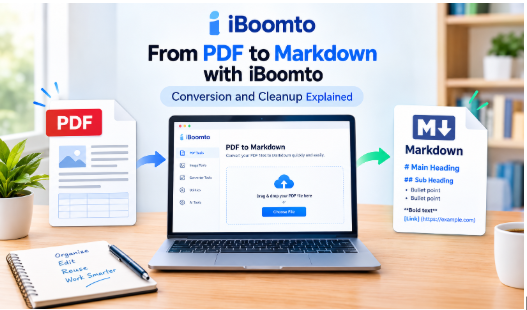
PDF files are useful for sharing documents because they preserve the original layout across devices. However, editing their content can be difficult, especially when you need to reuse headings, organize lists, update tables, or move information into another document. Copying text manually can create extra spaces, broken paragraphs, and formatting problems.
Converting a PDF into Markdown makes this process easier. Markdown is a lightweight text format that uses simple symbols to organize headings, lists, links, and other content. It is commonly used for technical documentation, research notes, articles, and project documentation.
With iBoomto, you can convert PDF content into Markdown and make it easier to edit and reuse. For users who need more than basic conversion, iBoomto also offers an AI document assistant for Windows that supports both online and local AI models. It provides a way to work with documents while emphasizing privacy, no cost, and no token limits. These features can be useful when you regularly process documents and want more flexibility in your workflow.
What Is Markdown, and Why Convert PDF Files Into It?
Markdown is a plain-text formatting language that helps users organize information without complicated editing software. Instead of using menus to format every heading or bullet point, you can apply simple symbols directly in the text.
For example, a Markdown heading begins with a hash symbol, while a bulleted list uses hyphens or asterisks. This makes the structure easy to read and edit, even in a basic text editor.
Here are some common Markdown examples:
- # Main Heading creates a first-level heading.
- ## Section Heading creates a second-level heading.
- – First item creates a bullet point.
- **Important text** makes text bold.
- [Example](https://example.com) creates a clickable link.
A PDF may contain these elements visually, but its underlying structure can be difficult to reuse. Converting it into Markdown makes headings, lists, and paragraphs easier to edit, reorganize, and transfer into another project.
This is particularly useful for students preparing notes, writers organizing research, developers maintaining documentation, and professionals working with reports. Rather than rebuilding an entire document manually, you can start with converted text and focus on improving the content.
How to Convert a PDF to Markdown Online With iBoomto
iBoomto provides an online PDF-to-Markdown tool that helps you transform PDF documents into editable Markdown content. You can access the converter through your web browser without needing to install a separate application for this basic task.
Visit the iBoomto PDF to Markdown converter to get started.
If you regularly work with documents and need additional AI-powered assistance, you can also download the iBoomto AI document tool for Windows after getting familiar with the online conversion process. It supports both online and local AI models and emphasizes privacy, no cost, and no token limits, making it an option for users who want to manage more document-related tasks.
Follow these steps to convert your PDF file into Markdown.
Step 1: Open the iBoomto PDF to Markdown Tool
Open your browser and visit the iBoomto PDF-to-Markdown page. Review the available instructions and conversion options displayed on the website.
An online converter is convenient when you need to convert a report, research paper, article, or other document without installing additional software. You can start directly from your browser and prepare the converted content for editing.
Step 2: Select Your PDF File
Choose the PDF document you want to convert. Before uploading it, make sure you have selected the correct version, especially if you have several copies of the same document.
Consider the document’s structure as well. A simple report containing headings and paragraphs is usually easier to convert than a PDF with multiple columns, complex tables, diagrams, and footnotes.
If your document contains confidential information, review the service’s privacy policy and file-processing details before uploading it. For highly sensitive material, choose a workflow that meets your security requirements.
Step 3: Start the PDF-to-Markdown Conversion
After selecting your PDF, follow the instructions on the page to begin the conversion. Allow the tool to process the document and generate the Markdown output.
The purpose of this step is to extract the document’s important content into a format that is easier to edit. Depending on the original PDF, some formatting may not transfer perfectly.
For example, a heading that appears large and bold in the PDF may need to be checked to ensure it becomes a proper Markdown heading. Similarly, a table may require additional formatting before its rows and columns are easy to understand.
Step 4: Download or Save the Converted Markdown
When the conversion is complete, follow the available download or export instructions to save the Markdown output, if supported by the tool.
Open the resulting file in a compatible text editor or Markdown editor. Check that the document has a logical structure, the paragraphs appear in the correct order, and important details have not disappeared during conversion.
Keep the original PDF as well. Having both versions available makes it easier to compare the content and correct any mistakes.
Step 5: Review and Clean Up the Markdown Content
Before using the converted file in another project, review its formatting carefully. Correct unnecessary line breaks, inconsistent headings, broken links, and incorrectly arranged tables.
For example, if the original PDF contains a numbered list of instructions, make sure the converted Markdown preserves the correct sequence. If it includes important figures or dates, compare them against the original document.
Once you have checked the content, the Markdown file is ready to use as a starting point for documentation, research notes, or other writing projects.
Need More Than PDF Conversion? Try iBoomto AI for Windows
Online PDF conversion is useful for simple tasks, but document work often involves more than changing a file format. You may also need to understand a lengthy report, locate specific information, organize research, or work with several documents.
For these tasks, iBoomto offers an AI document assistant for Windows that supports both online and local AI models. Instead of relying only on a browser-based conversion workflow, you can use a desktop tool for broader AI-assisted document work.
Here are three important benefits to consider.
Privacy-Focused Document Processing
Privacy is an important consideration when working with reports, research papers, business documents, or personal files. iBoomto’s support for local AI models gives users an option to process documents locally, depending on their configuration and the selected model.
Local processing can help reduce the need to send document content to an external AI service. However, the privacy outcome depends on the selected model, application settings, and any connected services. Users should review the tool’s privacy information and confirm which processing mode they are using before handling sensitive files.
No Cost to Get Started
Cost can become a concern when you regularly work with AI tools. iBoomto presents its document AI tool as a no-cost option, allowing users to explore AI-assisted document workflows without making a paid subscription the starting point.
This can be helpful for students, independent writers, researchers, and professionals who want to make document work more manageable while controlling their software expenses. Check the current product information for any platform, model, or usage-related requirements.
No Token Limit
Token limits can interrupt document workflows, particularly when you are working with lengthy reports or multiple files. iBoomto emphasizes no token limits for its document AI experience.
This can be attractive to users who want greater flexibility when working with long documents. Actual processing capacity can still depend on the selected AI model, available system memory, hardware, and other technical constraints.
How the AI Document Assistant Fits Into Your Workflow
Suppose you have a lengthy research PDF. You can begin by converting it into Markdown using the online converter. After reviewing the output, you can use the cleaned material as a reference while organizing your research or preparing a new document.
Alternatively, if your goal is to understand or work with a document rather than simply change its format, you can explore the Windows AI document assistant and choose an online or local model based on your needs.
To get started, visit the iBoomto website and look for the Windows AI document tool. Follow the current download and installation instructions, then review the available model options before beginning your work.
How to Clean Up Markdown After Conversion
A successful conversion is only the first step. PDF files can contain complex layouts that do not translate perfectly into plain text. Spending a few minutes reviewing the Markdown can prevent problems later.
Check Headings and Document Structure
Start by examining the main title and section headings. A well-organized Markdown document should use heading levels consistently.
For example, a main title can use one hash symbol, while major sections use two. Subsections can use three when appropriate.
Avoid choosing heading levels only because they look visually appealing. Their purpose is to show how different sections relate to each other.
If the converted document contains repeated headings or unnecessary symbols, correct them before moving on. A clear hierarchy makes the content easier to navigate and maintain.
Fix Paragraph Breaks and Spacing
PDF extraction can sometimes split one paragraph into several short lines. In other cases, separate paragraphs may run together without enough spacing.
Read the text in order and correct these issues. Remove unnecessary line breaks, restore missing paragraph divisions, and check whether sentences have been separated incorrectly.
Pay attention to hyphenated words as well. Some PDFs split a word across two lines, and the conversion may preserve an unwanted hyphen or space. Correct these errors while keeping the original meaning unchanged.
Inspect Lists and Numbered Steps
Lists are common in instructions, reports, and educational materials. When converted into Markdown, their numbering or indentation may not always remain consistent.
Check that each list item starts on a separate line and that related items use the same formatting style. For numbered instructions, confirm that the sequence makes sense.
For example, a procedure containing five steps should not suddenly restart at step one or combine two separate instructions into a single item.
Properly formatted lists help readers follow instructions without confusion.
Review Tables and Important Data
Tables often need the most attention because PDFs can position information using precise page layouts. During conversion, columns may become misaligned, or text from separate cells may appear together.
A Markdown table generally uses vertical bars to separate columns and hyphens to distinguish the header row.
For example:
| Task | Purpose | Result |
| Convert PDF | Extract document content | Editable Markdown |
| Review headings | Check section hierarchy | Clear structure |
| Inspect tables | Correct column alignment | Easier reading |
Use this structure as a reference when cleaning up converted tables. Compare important figures, dates, names, and totals against the original PDF. Never assume that a table is accurate simply because it looks organized.
For especially complex tables, it may be more practical to rebuild the structure manually or move the data into a spreadsheet.
Verify Links and Special Elements
If the original PDF contains links, footnotes, formulas, or references, check whether they remain usable in the converted output.
A link may lose its destination, while a footnote marker might become separated from its explanation. Equations and mathematical symbols can also require manual correction.
Images, charts, and other visual elements may not become fully editable Markdown content. If they are important to the document, preserve the original file or handle those elements separately.
The objective is to create a reliable working document rather than simply produce a file with a different extension.
What Can You Do With Clean Markdown?
After cleaning up the converted document, you can reuse its contents in several practical ways.
Create technical documentation: Developers can organize instructions, project notes, and software documentation in a lightweight format that is easy to maintain.
Prepare research notes: Students and researchers can extract useful information from papers and reports, then organize it under headings for easier review. Important quotations, references, and findings should still be checked against the original source.
Update existing content: Writers can use Markdown as a starting point when revising articles, preparing outlines, or reorganizing material from older documents.
Build structured knowledge resources: Teams can collect information from different documents and arrange it into consistent sections. This can make later searching and editing more manageable.
Prepare content for other tools: Markdown can be useful when moving text into documentation platforms, compatible publishing systems, and writing applications that support the format.
In each case, the benefit comes from making information easier to work with. Conversion reduces some manual effort, while careful review helps maintain accuracy.
Common Mistakes to Avoid When Converting PDF Files
A few simple precautions can improve the final result:
- Skipping proofreading: Compare important sections with the original PDF.
- Ignoring table alignment: Check that values remain under the correct column headings.
- Using inconsistent headings: Maintain a logical structure throughout the document.
- Removing meaningful formatting: Preserve lists, references, and paragraph divisions when they help explain the information.
- Assuming every PDF converts perfectly: Scanned pages, multiple columns, and unusual layouts may need extra work.
- Overlooking privacy: Check how a service handles uploaded files before processing confidential documents.
- Editing without keeping a backup: Preserve the original PDF so you can verify questionable details later.
These steps may seem small, but they can make a significant difference when the converted content will be reused in reports, documentation, or published material.
Final Thoughts
Converting a PDF into Markdown can make document editing more flexible and reduce the effort required to reuse existing information. However, the best results come from combining conversion with a careful cleanup process.
With iBoomto’s online PDF-to-Markdown converter, you can turn existing PDF content into a more manageable format. Following a step-by-step process and checking headings, paragraph breaks, lists, tables, and links helps ensure that the resulting Markdown remains useful and accurate.
For users who need more advanced document assistance, iBoomto’s Windows AI document tool offers another option, with support for online and local AI models and an emphasis on privacy, no cost, and no token limits.
Whether you are organizing research, updating documentation, or preparing material for another writing project, the workflow is straightforward: select the correct PDF, convert it, inspect the output, correct formatting problems, and verify important details against the original.
By treating conversion as the beginning of the process rather than the final step, you can turn static PDF content into a more manageable resource for future work.