
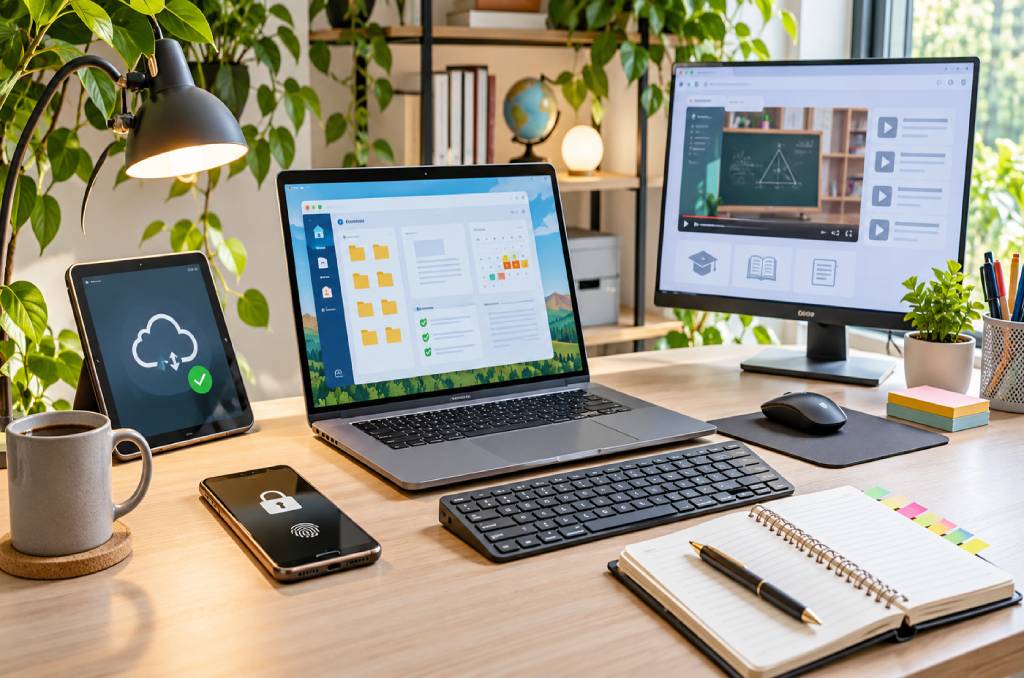
An efficient digital workspace is a setup where your device, apps, files, and habits work together so you finish tasks faster with less stress.
It starts with the right machine, so checking the laptop price in BD before you buy helps you match power and storage to what you really do.
Picture a desk piled with papers, three cups, and no pen in sight. Your digital space can look just as messy, with random files, endless tabs, and slow apps.
This post covers how to pick the right device, set up your desk, organize files, choose useful tools, protect your data, and avoid common mistakes.
What Is a Digital Workspace and Why Does It Matter?
A digital workspace is the mix of devices, apps, files, and online accounts you use to work, study, and manage daily life. A well-built one saves time, cuts distractions, and keeps important files easy to find.
Think of it like a kitchen. When pots and spices sit in the right places, cooking feels easy. Your laptop, folders, and apps follow the same rule.
How Do You Choose the Right Device for Your Workspace?
Choose a laptop based on your daily tasks. For most people, 16GB of RAM and a 512GB SSD give a smooth experience, while 8GB of RAM works for light use.
RAM is your laptop’s short-term memory. It holds open apps and browser tabs, so more RAM means fewer slowdowns when you multitask. An SSD loads files and apps much faster than an old hard drive.
Use this table to match your daily habits with the right specs.
| Main Use | Suggested RAM | Suggested Storage |
| Browsing, notes, online classes | 8GB | 512GB SSD |
| Office work, many tabs, video calls | 16GB | 512GB SSD |
| Video editing, design, heavy coding | 32GB | 1TB SSD |
How Should You Set Up Your Desk and Screen?
A good setup keeps your screen at eye level, your wrists relaxed, and your lighting soft. These small changes reduce neck pain, eye strain, and tiredness during long hours.
A laptop is a strong base, but a few simple add-ons make it far better.
- Raise your laptop screen. Place the top of the screen at or just below eye level. A stand or a stack of books works well.
- Add a separate keyboard and mouse. This lets you type with relaxed wrists while the screen stays high.
- Light the room well. Natural light from a window is best, and a soft desk lamp helps in the evening.
- Follow the 20-20-20 habit. Every 20 minutes, look at something 20 feet away for 20 seconds to ease tired eyes.
How Do You Organize Files and Apps So You Never Lose Anything?
Use one main folder for each area of your life, name files in a clear pattern, and keep a cloud copy of important work. A simple system beats a clever one you never follow.
Suppose you are a student with four courses and a part-time job. You create five main folders, one for each course and one for work. Inside each, you add sub-folders such as Notes, Assignments, and Resources. Now every file has a home, and finding it takes seconds.
Name files with the date first and a short title after it, like 2026-11-09-Marketing-Report. This keeps them in order automatically. Cloud storage then puts your files on your phone and laptop.
Which Tools Make Work, Study, and Daily Tasks Easier?
The best tools are the few you use every day. A notes app, a calendar, a task list, and a focus timer cover most needs.
Each new app adds another login and another place to check. Pick one tool for each job and stick with it.
- Notes app. Keep class notes, meeting points, and ideas in one place so you can search them later.
- Calendar. Add classes, deadlines, bills, and meetings so nothing hides in your memory.
- Task list. Write three key tasks each morning and tick them off as you go.
- Focus timer. Work for 25 minutes, then rest for five. Many people call this the Pomodoro technique.
How Can You Protect Your Workspace and Your Data?
Protect your workspace with strong passwords, two-step login, regular updates, and a backup of your key files. These habits stop most common problems.
A great setup means little if a lost laptop or a hacked account wipes it out.
- Use a password manager. It creates and stores strong, unique passwords so you never reuse the same one.
- Turn on two-step login. Even if someone learns your password, they still cannot enter your account.
- Install updates. Updates fix security holes and often improve speed.
- Follow the 3-2-1 backup rule. Keep three copies of important files, on two types of storage, with one copy off-site or in the cloud.
What Common Mistakes Do People Make When Building a Digital Workspace?
The most common mistakes are buying weak specs, keeping messy files, opening too many tabs, and skipping backups. Each one is easy to fix once you spot it.
- Buying on looks alone. A slim design means little if the laptop cannot handle your daily tasks.
- Saving everything on the desktop. A crowded desktop makes files hard to find when you need them fast.
- Keeping dozens of tabs open. Each tab uses memory, so close the ones you no longer need.
- Skipping backups. One failed drive can erase months of work in a moment.
Actionable Takeaways for a Faster, Cleaner Workspace
These steps are quick and simple. Start with the first two today and add one more each day.
- Check your specs. Look up how much RAM and storage your device has right now.
- Raise your screen. Lift it to eye level before your next work session.
- Create main folders. Move your 20 most-used files into them.
- Secure your accounts. Turn on two-step login for your email and cloud storage.
- Set a backup reminder. Pick one day each week to copy important files.
Final Thoughts and a Smart Next Step
A strong digital workspace does not need the most expensive gear. It needs tools that match your tasks and habits that keep things tidy.
Start with a device that fits your needs, add a comfortable desk setup, and keep your files in order. Then protect everything with backups.
Pick one item from the checklist above and finish it today. Small steps build a workspace that works for you every day.